很多人误以为shell脚本只能在命令行下使用。其实shell也可以调用一些GUI组件,例如菜单,警告框,进度条等等。你可以控制最终的输出,光标位置还有各种输出效果。下面我将介绍一些工具,帮助你创建强大的,互动的,用户友好的 Unix/Linux shell脚本。我在FreeBSD和Linux下测试过这些工具,不过其他UNIX系列的操作系统应该都支持的。
1. notify-send 命令
这个命令可以让你通过通知进程发送一个桌面通知给用户。这可以用来向用户发送提示,或者显示一些信息而不用打断用户工作。你需要安装如下软件包:
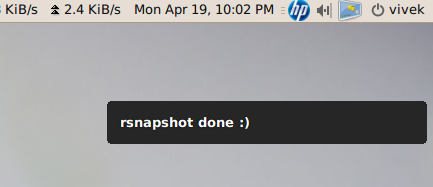
下面是一个复杂一点的例子:
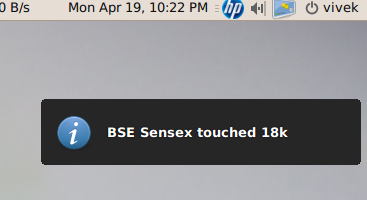
这里的参数解释如下:
1. notify-send 命令
这个命令可以让你通过通知进程发送一个桌面通知给用户。这可以用来向用户发送提示,或者显示一些信息而不用打断用户工作。你需要安装如下软件包:
1
$ sudo apt-get install libnotify-bin下面这个例子展示了如何从命令行向桌面发送一个简单的消息: 1
notify-send "rsnapshot done :)"输出: 下面是一个复杂一点的例子:
1
....
2
alert=18000
3
live=$(lynx --dump http://money.rediff.com/ | grep 'BSE LIVE' | awk '{ print $5}' | sed 's/,//g;s/\.[0-9]*//g')
4
[ $notify_counter -eq 0 ] && [ $live -ge $alert ] && { notify-send -t 5000 -u low -i "BSE Sensex touched 18k"; notify_counter=1; }
5
...输出: 这里的参数解释如下:
-
-t 5000:指定超时的时间,毫秒
-u low:设置是否紧急
-i gtk-dialog-info:通知图标,你可以指定图标 -i /path/to/your-icon.png
2. tput 命令
这个命令是用来设置终端特性的:
-
移动光标
获得终端信息
设置前景和背景色
设置粗体模式
设置反模式等等 举例:
01
#!/bin/bash
02
03
# clear the screen
04
tput clear
05
06
# Move cursor to screen location X,Y (top left is 0,0)
07
tput cup 3 15
08
09
# Set a foreground colour using ANSI escape
10
tput setaf 3
11
echo "XYX Corp LTD."
12
tput sgr0
13
14
tput cup 5 17
15
# Set reverse video mode
16
tput rev
17
echo "M A I N - M E N U"
18
tput sgr0
19
20
tput cup 7 15
21
echo "1. User Management"
22
23
tput cup 8 15
24
echo "2. Service Management"
25
26
tput cup 9 15
27
echo "3. Process Management"
28
29
tput cup 10 15
30
echo "4. Backup"
31
32
# Set bold mode
33
tput bold
34
tput cup 12 15
35
read -p "Enter your choice [1-4] " choice
36
37
tput clear
38
tput sgr0
39
tput rc输出: 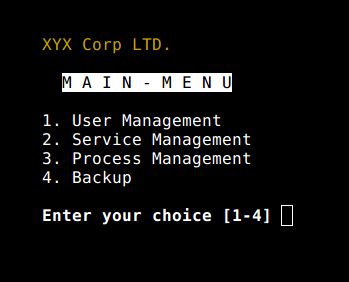
3. setleds 命令
这个命令可以让你控制键盘灯,例如打开数字键盘灯:
1
setleds -D +num关闭数字键盘灯: 1
setleds -D -num
-
-caps: 清除大写灯
+caps:打开大写灯
-scroll:清除滚动锁
+scroll:打开滚动锁
4. zenity 命令
这个命令可以显示GTK+的对话框,然后返回用户的输入。你可以用这个命令在脚本中显示信息,并要求用户输入信息。下面这段代码就是域名的whois查询:
01
#!/bin/bash
02
# Get domain name
03
_zenity="/usr/bin/zenity"
04
_out="/tmp/whois.output.$$"
05
domain=$(${_zenity} --title "Enter domain" \
06
--entry --text "Enter the domain you would like to see whois info" )
07
08
if [ $? -eq 0 ]
09
then
10
# Display a progress dialog while searching whois database
11
whois $domain | tee >(${_zenity} --width=200 --height=100 \
12
--title="whois" --progress \
13
--pulsate --text="Searching domain info..." \
14
--auto-kill --auto-close \
15
--percentage=10) >${_out}
16
17
# Display back output
18
${_zenity} --width=800 --height=600 \
19
--title "Whois info for $domain" \
20
--text-info --filename="${_out}"
21
else
22
${_zenity} --error \
23
--text="No input provided"
24
fi输出: 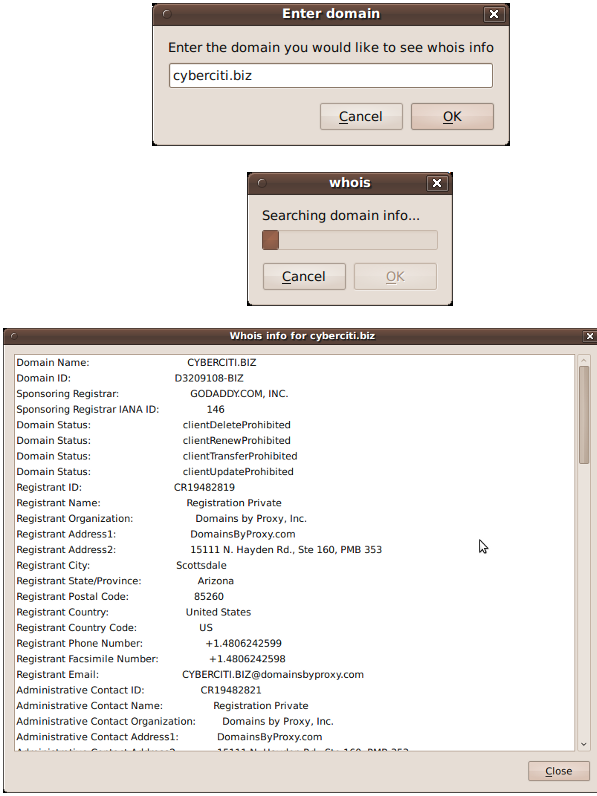 此文章由 http://www.ositren.com 收集整理 ,地址为: http://www.ositren.com/htmls/57590.html